Skip to content
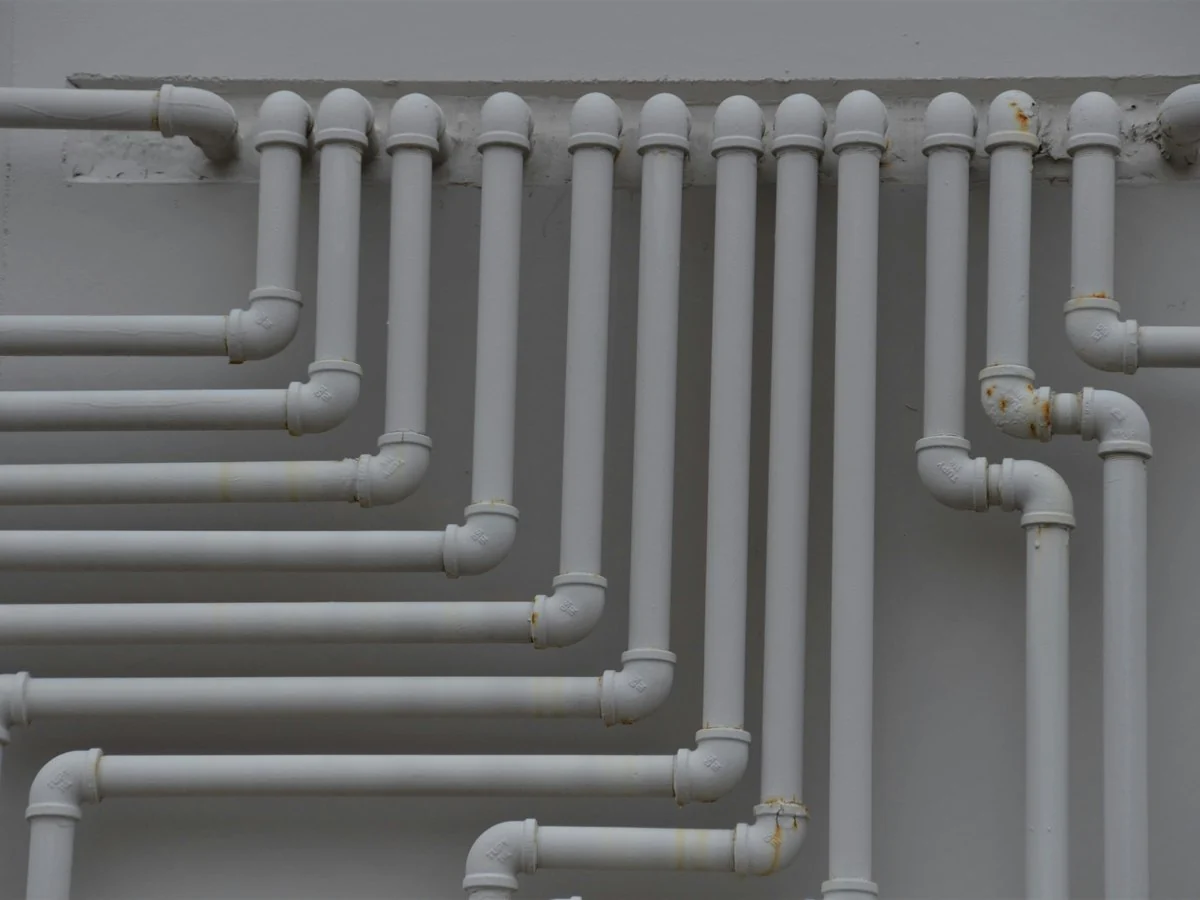
Neat rows of grey pipework on a building wall, every run in its place, like job documents filed on the job they belong to
VOVO-02 · Variation OrderExtra roller shutter at the rear bayRM 6,400.00
DODO-4471 · Delivery OrderHardware shop
RR-88213 · ReceiptMaterial Purchase ReceiptRM 412.60
PCPC-02 · Progress ClaimSteel Canopy, Block BRM 54,776.00
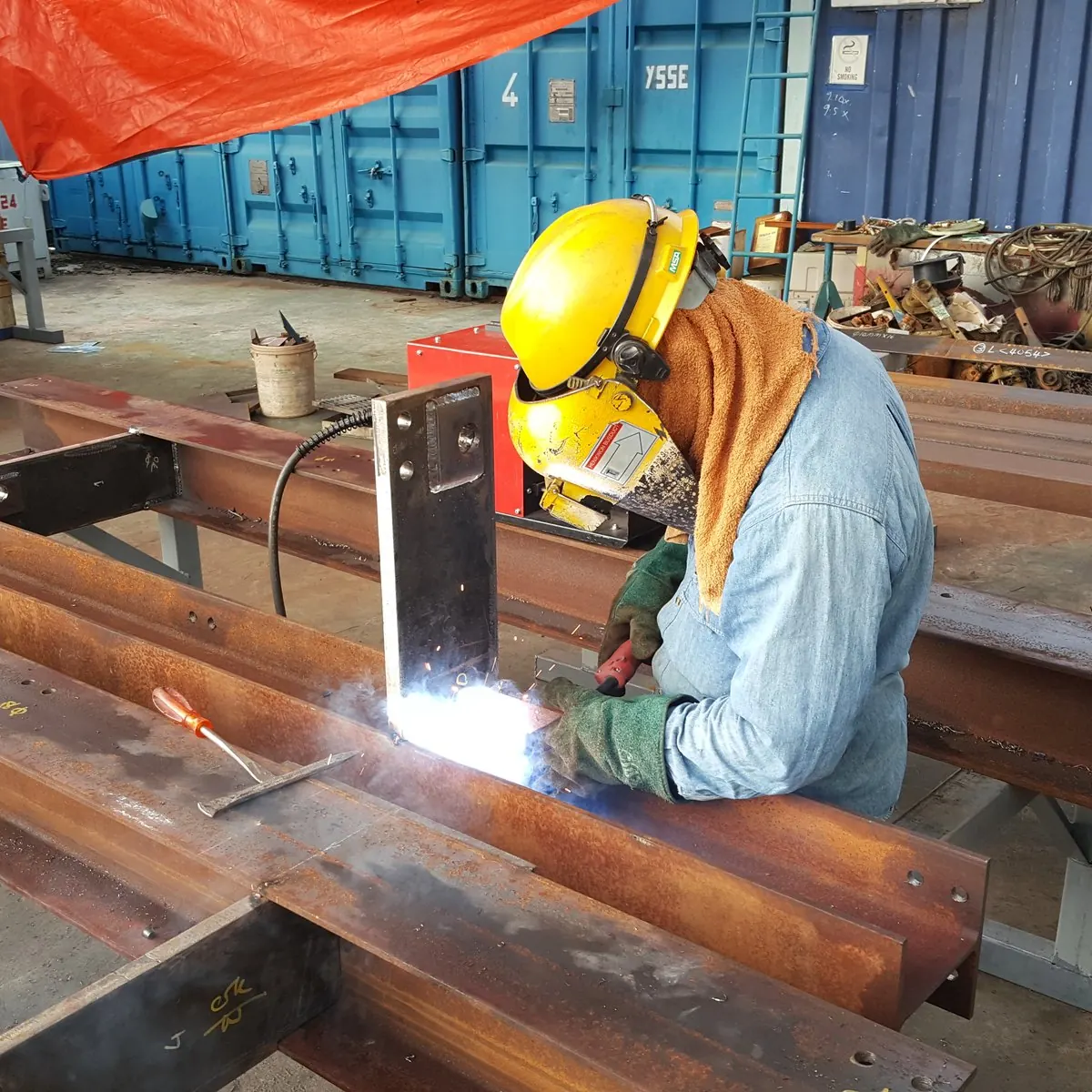
Site photo of a welder on a steel beam filed against a jobPhoto · Welding at the base plate
Documents, photos and variation orders

Construction document management for contractors in Malaysia

Receipts, site photos, variation orders and delivery orders are filed on the job they belong to. Staff can come and go, phones can be lost, and the record stays on the job. When there is a dispute, one tap makes a pack in date order.

14 days free, no card · Every feature on every plan · Site staff are free

Dispute pack

When a claim is contested, one tap.

When a claim is contested, Management presses Make the pack on the job’s Contract & Payments tab. It gathers every diary entry, photo, variation order, claim and payment on the job, in date order, ready to print or save as a PDF. It also adds the hours lost that the diary recorded. Voided diary entries are left out, and every figure is exactly as recorded on the job.

DTSite diary entry5 men on site · 3 photos
PHPhotoColumn C4 bracket fitted
VOVariation orderVO-02 · RM 6,400.00
PCProgress claimPC-02 · RM 54,776.00
RMPaymentReceived · RM 55,224.00
Dispute packPDF
Steel Canopy, Block B · in date order
  • 20 Oct · Site diary entry5 men · 3 photos
  • 21 Oct · PhotoColumn C4 bracket fitted
  • 22 Oct · Variation orderVO-02
  • 25 Oct · Progress claimPC-02
  • 28 Oct · PaymentReceived
Ready to print or save as a PDF
Staff leave, records stay

When staff leave or a phone is lost.

Removing a user cuts their access straight away, and their records stay on the job.

AAminahOwner
JJasonQS / Engineer
RRahmanSite staff (free)Access removed
Rahman’s records stay on the job

Site diary entry · 3 photos

Photo · Welding at the base plate

Note · Rain stopped work for an hour after lunch

app.raultech.my/pms
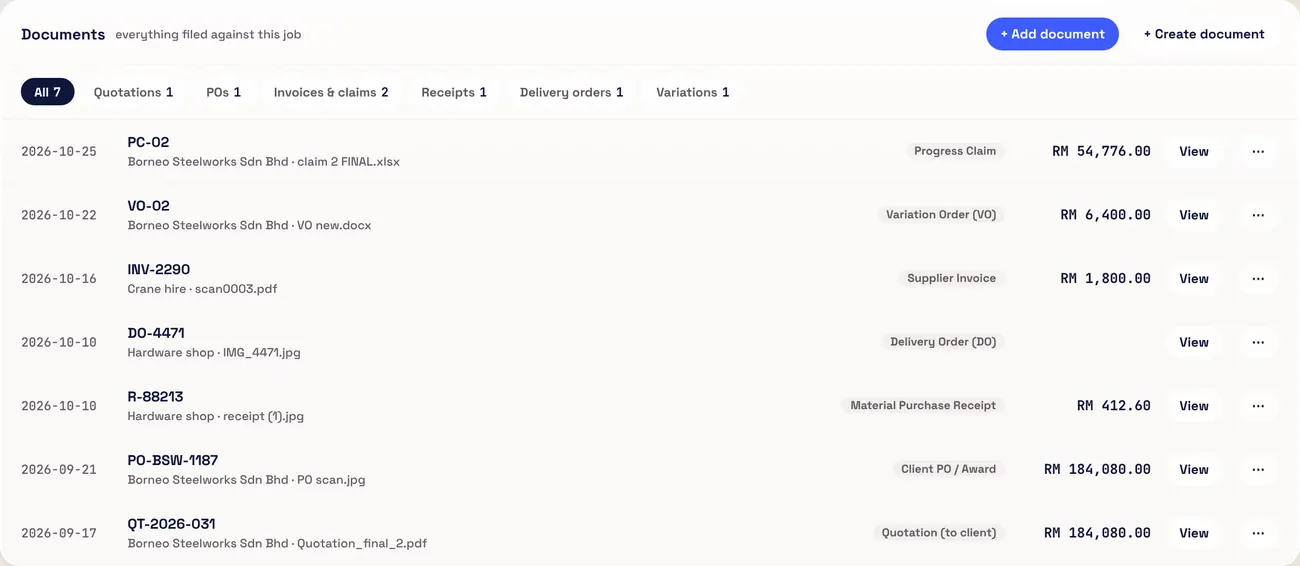
A job Documents tab in Raul: quotations, POs, invoices and claims, receipts, delivery orders and variations filed against the job
Filed on the job when you add it.
app.raultech.my/pms
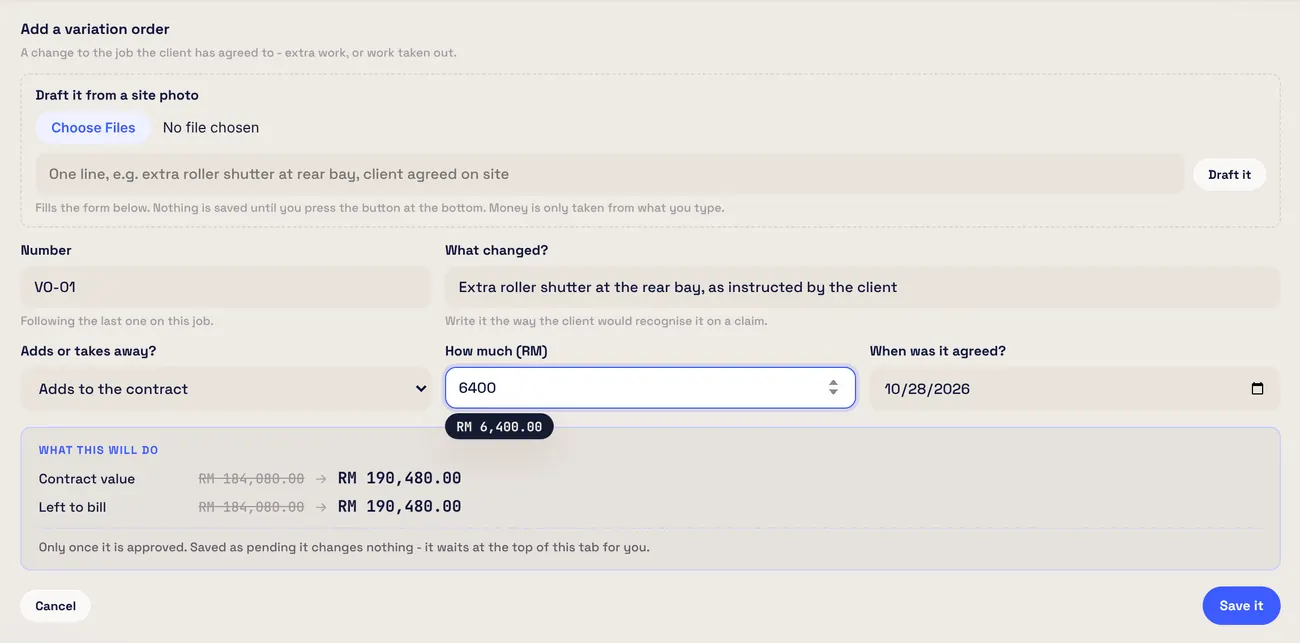
Raul Add a variation order form with Draft it from a site photo, what changed, how much and what this will do to the contract
A variation, agreed on site and recorded.
app.raultech.my/pms
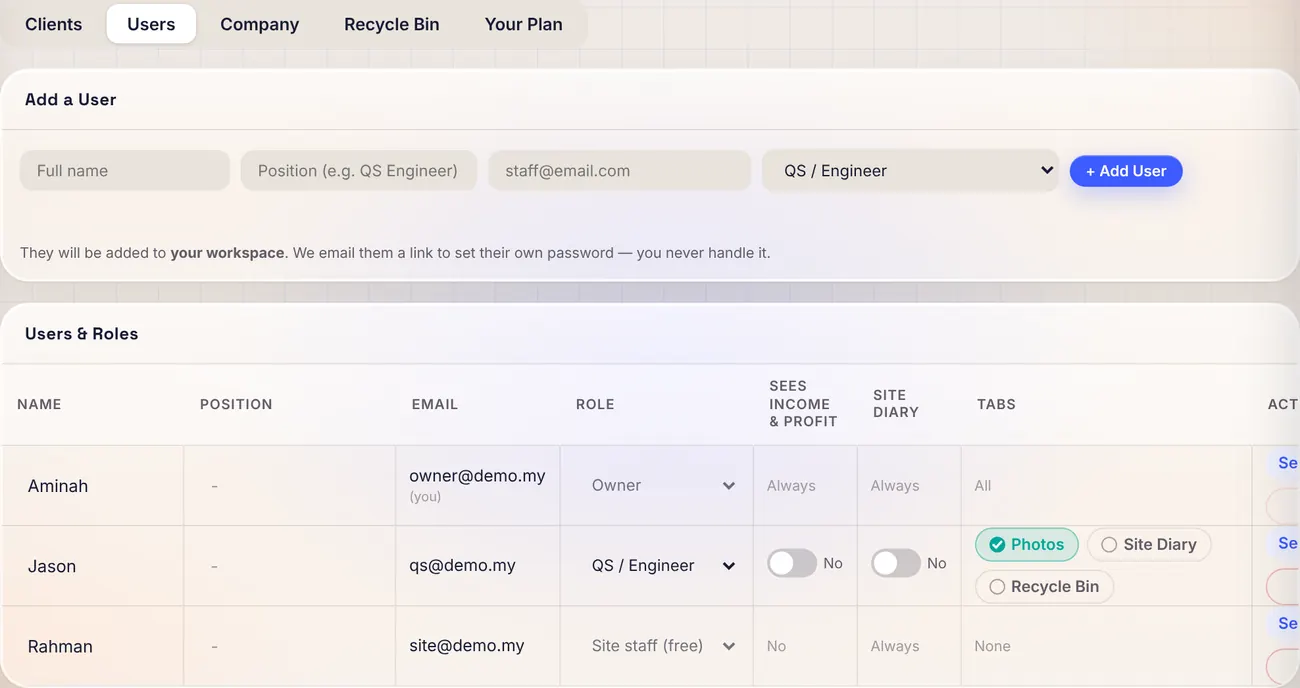
Raul Users and Roles table: Owner, QS and Site staff roles, income access and Site Diary switches
You choose who sees what.
In detail

Everything on the job, filed where it belongs.

01 · FILE IT

Add a document, three ways.

Press + Add document, then choose how to file it. Raul remembers your choice for next time.

  • Read it for me. Choose photos or PDFs. Raul reads the document type, company, document number, date and amount, with a suggested purpose and the item lines it can read. You check it and type in anything missing. Raul warns you if the lines do not add up to the printed total, or if the same number from the same supplier is already filed.
  • I’ll type the details. The same form opens empty and nothing is read.
  • Just keep a copy. Keep up to 20 files as they are, and press Read now on any of them later.
  • Under Filed under, choose a job, or a company place: Office & admin, Business expenses or Client entertainment. Not sure yet? Press Save, file later. The document shows as To file until you decide.
02 · AGREE IT

Variation orders, agreed on site and recorded.

A variation is a change the client agreed to, extra work or work taken out. Anyone in the office can record one, and it changes no money until Management approves it. Each variation shows its stage, from Recorded to Paid.

  • Management can print a Variation Order form for the client to sign.
  • Add a site photo and one line and Raul drafts the description. The amount is filled in only if you typed it, so it is always yours to decide.
  • Photos your site team attaches to the Site Diary show with each diary entry, and anyone in the office can add photos from a job’s Photos tab.
03 · CREATE IT

Create the paperwork too.

Management can create Delivery Orders, Purchase Orders, Variation Order forms and work completion or handover forms from the Documents page or a job’s Documents tab. Each is saved in Documents and printed in the document style you choose: Classic, Modern, Minimal, Bold or Corporate, with your logo.

  • Search finds it. A project, client, document number, invoice, variation or a word from the site diary.
04 · PROVE IT

The dispute pack, in one tap.

When a claim is contested, Management presses Make the pack on the job’s Contract & Payments tab. It gathers every diary entry, photo, variation order, claim and payment on the job, in date order, ready to print or save as a PDF. It also adds the hours lost that the diary recorded. Voided diary entries are left out, and every figure is exactly as recorded on the job.

05 · KEEP IT

When staff leave or a phone is lost.

Removing a user cuts their access straight away, and their records stay on the job.

  • See who changed what. Inside a job, Show history lists every change, who made it and when.
  • You control who sees what. Documents that show income are seen only by Management and by people with that access switched on. Site staff see the Site Diary only.
  • Share by link. Management can share a document with a link that works for 24 hours, 7 days, 30 days or with no end date, and stop sharing at any time.
How it works

File a receipt in three steps.

  1. Press + Add documentAnd choose Read it for me.
  2. Check what Raul readThen choose Filed under: a job or a company place.
  3. Press File it and post the costOr File it only to keep the document without touching the cost.
Who it is for

For every trade on every job.

Construction companies, main contractors, subcontractors and renovation and M&E firms that want one place for job paperwork from the office, the QS and the site. Every feature is on every plan.

Building & civilRenovation & fit-outM&EElectricalPlumbingAircon & ductingRoofing & ceilingSteel & structuresFinishesLandscapingSubcontractors
FAQ

Common questions

Where is a document saved when I add it?

It is filed when you add it, either on a job or on a company place such as Office & admin. If you are not sure yet, press Save, file later and it waits in Documents as To file.

What happens to the records when a staff member leaves?

Management removes the login, and access is cut straight away. Their records stay on the job.

What if a supervisor loses their phone?

Entries already sent are filed on the job in Raul, not kept only on the phone. Management can remove that person’s login in Settings, Users. An entry still waiting for signal would be on the phone until it sends.

What is in the dispute pack?

Every diary entry, photo, variation order, claim and payment on the job, in date order, plus the hours lost that the diary recorded. It is ready to print or save as a PDF.

Can I share a document with a client who has no login?

Yes. Management can create a share link that works for 24 hours, 7 days, 30 days or with no end date, and can stop sharing at any time. The document always stays filed in Raul.

Who can see which documents?

Cost paperwork is open to everyone in the office. Paperwork that shows what the company earns, such as client quotations, invoices and variation orders, is seen only by Management and people with income access. Site staff see the Site Diary only.

Start today

File it where it belongs.

14 days free, no card. Or WhatsApp us and we will set it up with you.

+60 16-782 8223